Checking Your Property's Assessment
TaxAssessmentIQ starts with a single input — your address — and pulls your live Office of Property Assessment (OPA) record automatically.
Enter your address
Type in the property address you want to check. TaxAssessmentIQ pulls the current OPA assessment record directly, so you're seeing the same figure the city has on file, not a third-party estimate.
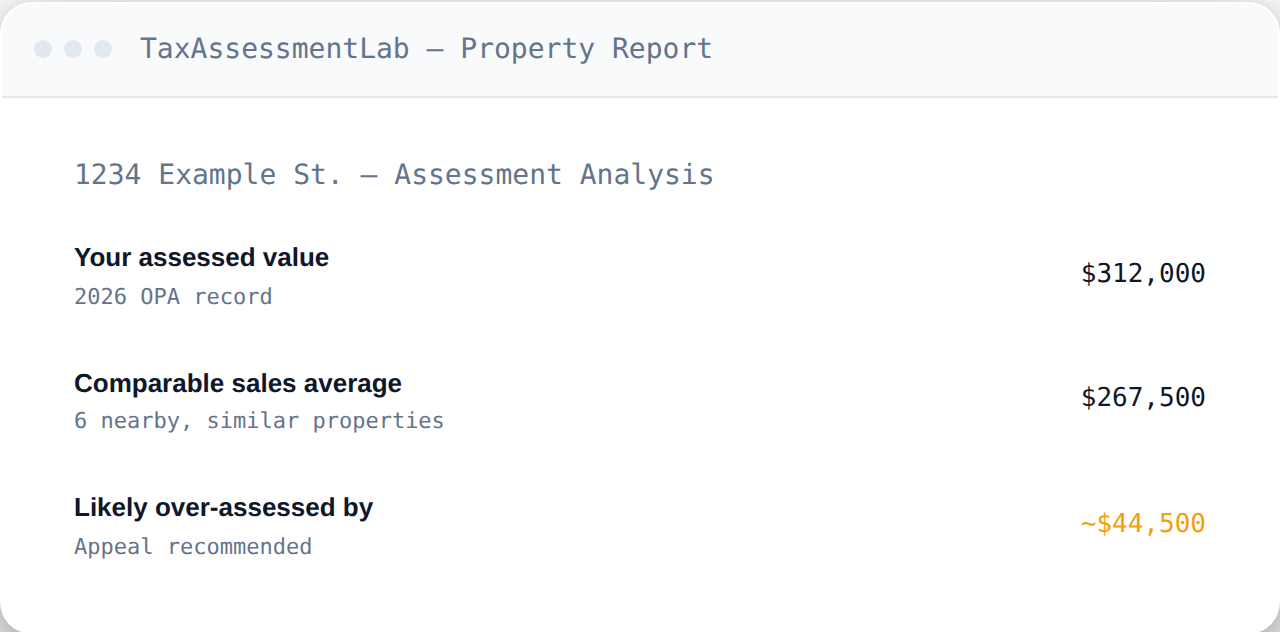
What comes back
Your report shows your assessed value alongside a comparable sales average drawn from nearby, similar properties, plus a flag indicating whether your assessment looks likely over-assessed relative to that comparison — and by roughly how much.
What happens next depends on the result
Not every property should appeal. If the gap between your assessment and comparable sales isn't significant, TaxAssessmentIQ tells you that directly rather than pushing you toward an appeal regardless. If an appeal does look worthwhile, the next step is generating the packet — see Generating an Appeal Packet.
Understanding the comparison itself
For how the comparable sales are selected and what "comparable" actually means here, see Understanding Comparable Sales.
Frequently asked questions
Do I need to create an account to check an assessment?
Yes — TaxAssessmentIQ requires a free or paid ALKARTIS account. See Creating Your Account.
Is TaxAssessmentIQ only for homeowners?
It's built primarily for residential property owners; commercial properties often involve more complex valuation questions.
Does checking my assessment guarantee I should appeal?
No tool can guarantee an outcome — it tells you whether the gap is significant enough to be worth filing, not whether an appeal will win.